
If your iPad Pro half screen stopped working, first figure out whether the picture is missing or the picture looks normal but won't respond to touch. Remove the case and screen protector, disconnect accessories, and restart the iPad. If the same area stays unresponsive across apps after those checks, a hardware problem is possible. Back up your data before arranging service; don't jump straight to a factory reset.
Is it the picture, touch, or just one app?
A black or flickering section points to a different problem than a normal-looking screen that ignores your finger. Start on the Home Screen and try tapping icons on both sides. Then open a couple of apps and rotate the iPad. Note whether the dead area stays in the same physical place when the picture rotates.
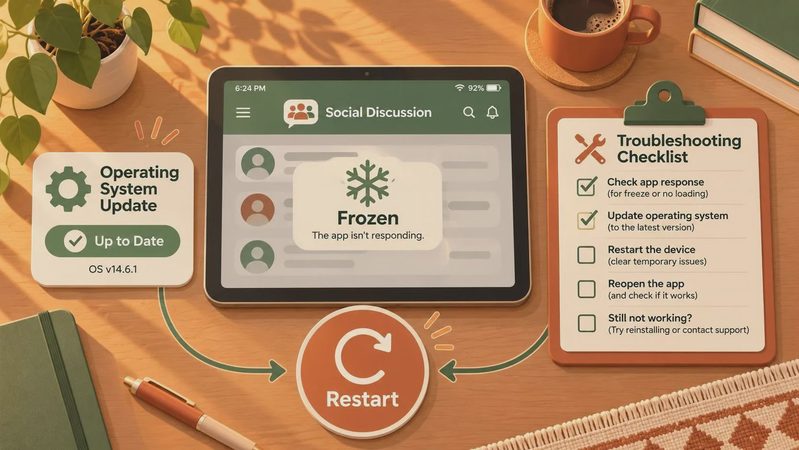
If the trouble happens only in one app, close and reopen it, then check the App Store for an update. A frozen app or a tool with a restricted drawing area can look like a screen fault. If the same physical strip won't respond on the Home Screen and in multiple apps, the problem is less likely to be limited to one app.
Also check whether you're seeing an app displayed beside another app rather than a broken screen. iPad multitasking can make an app occupy only part of the display. Try going back to the Home Screen; if the whole screen responds there, the app layout may be the issue.
If you're using an Apple Pencil, test the same area with a finger. A Pencil-only problem calls for checking the Pencil's charge, pairing, and tip before blaming the display. If neither input works in that area, continue with the steps below.

Rule out the easy physical causes
Unplug the charger and any hub or accessory, then try the screen again. Touch behavior that changes when a cable is connected is useful information for a technician. Try a different compatible charging setup if you have one, but don't keep using a damaged cable or adapter.
Remove the case and screen protector, especially if either is cracked, lifting, or pressing against the screen. Clean the display gently with a soft, slightly damp, lint-free cloth, then dry it. Don't spray cleaner directly onto the iPad or let moisture enter its openings. Test with clean, dry fingers.
Look for a crack, a dark blotch, colored lines, or a gap between the screen and frame. Those are reasons to stop treating this as a simple settings problem. If the device is unusually hot, swollen, or visibly separating, stop charging and using it and contact Apple or a qualified service provider. Don't press the screen back into place.
Restart, then check for an update
A normal restart is worth trying if enough of the screen responds to operate the power controls. If you can't use the slider, a force restart can help. It doesn't erase your data.
On an iPad Pro without a Home button, quickly press and release the volume button closest to the top button, then quickly press and release the other volume button. Press and hold the top button until the Apple logo appears. On an iPad Pro with a Home button, press and hold the Home and top buttons together until you see the Apple logo.
After it starts again, test the same spots on the Home Screen. If touch works well enough, check Settings for an iPadOS update. Install one if available, preferably after backing up. An update can address software trouble, but it won't mend a cracked panel or a damaged connector.
A full erase is a much bigger step. It can make sense during guided troubleshooting, but only after you have a verified backup and understand that the data on the iPad will be erased. I wouldn't make it the first move for a consistently dead physical strip.

Back up before the screen gets worse
If the iPad is still usable, check Settings for your iCloud backup status and start a backup if you have enough storage. You can also back up to a Mac using Finder or to a Windows PC using Apple Devices or iTunes, depending on your setup. A computer backup may require you to unlock the iPad and trust the computer on its screen.
Can't tap the necessary controls? A compatible mouse or trackpad may provide another way to navigate, though connecting or enabling one can also require touch input. If you already have a working keyboard or pointing device paired, try that first. Don't assume a repair will preserve the data: ask the service provider what preparation is required and whether erasure is possible.
Photos, notes, and files may already be synced to cloud services, but syncing isn't the same as a complete device backup. Check what you can access from another device before assuming everything is safe.
When to book service for an iPad Pro half screen stopped working
Arrange an inspection if the same area remains dead after the accessory checks and restart, or if part of the image is missing, flickering, or visibly damaged. Tell the technician whether touch, the picture, or both failed; whether the issue follows the physical screen when you rotate it; and whether a drop or liquid exposure preceded it. Those details help narrow the diagnosis without guessing which part needs replacement.
Check your warranty and any AppleCare coverage before authorizing work. Coverage depends on the device, the plan, and the cause of damage; an inspection may be needed to determine the charge. Ask Apple, an Apple Authorized Service Provider, or a reputable independent shop for an estimate and what the repair includes. Compare that quote with the cost of a suitable replacement, particularly on an older iPad.
I've seen what comes back: a rushed fix isn't much of a bargain if your files disappear or the quote surprises you. Save what you can, get the diagnosis in writing, and decide from there.



No comments yet — be the first to share a thought.