
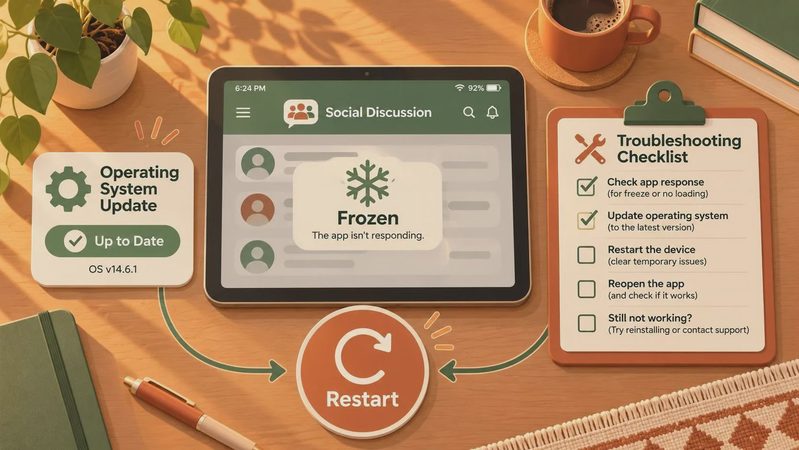
When your tablet freezes with the message Lenovo tablet System UI not responding, it is easy to assume the device is dying. Usually, that is not the first conclusion I would reach. System UI is the Android layer responsible for the navigation buttons, status bar, notifications, lock screen, and parts of the home screen. If it crashes, the tablet can look frozen even while the underlying hardware is still working.
I spent eight years selling and processing returns for tablets, and I have seen plenty of customers bring back a device that needed ten minutes of troubleshooting rather than a replacement. The sensible approach is to start with low-risk fixes, protect your files, and only move toward a factory reset when the evidence points that way.
What the System UI error actually means
The Lenovo tablet System UI not responding warning generally appears when Android cannot keep that interface running. A nearly full storage drive is a common trigger. So are a recently installed app, a failed system update, corrupted temporary files, overheating, or too many background processes on an entry-level tablet.
This error does not automatically mean your screen, motherboard, or battery has failed. If you can still hear notification sounds, adjust volume, or see the charging indicator, the tablet may be partially functional. A touchscreen that responds slowly is also different from a completely dead display. Those clues help separate a software problem from physical damage.
If the message gives you two choices, select Wait once and give the tablet about 30 seconds. If the interface returns, immediately save important photos, school documents, downloads, and notes. Do not spend the next hour opening games and streaming video before securing your data.
Start with a forced restart
The quickest fix for Lenovo tablet System UI not responding is a forced restart. Hold the power button for about 20 to 30 seconds. On some Lenovo models, holding Power and Volume Down together for 10 to 15 seconds works when the power button alone does nothing. Release the buttons when the Lenovo logo appears, then allow the tablet several minutes to finish starting.
A forced restart does not erase personal files. It simply interrupts the current software session and reloads Android. That makes it a safe first step after a crash, especially if the tablet became hot or had been running for days without a restart.
Once the home screen returns, close recent apps and leave at least several gigabytes of storage free. Delete downloaded movies, duplicate photos, old installation files, and unused games. Android needs working room for updates and temporary processes. A tablet with only a few hundred megabytes available is much more likely to stutter or display repeated errors.
Test the tablet in Safe Mode
If Lenovo tablet System UI not responding appears again after restarting, a third-party app could be interfering with Android. Safe Mode starts the tablet with most downloaded apps disabled. The exact button sequence differs by model, but a common method is to hold the Power button, then press and hold Power off on the screen until a Safe Mode prompt appears.
If you cannot reach that prompt, turn the tablet off. Power it on and hold Volume Down while the Lenovo logo appears. Look for Safe Mode in a corner of the display. If the tablet works normally there, recently installed launchers, cleaners, antivirus tools, keyboard apps, widgets, and games deserve suspicion.
Remove the newest apps one at a time, restarting normally after each removal. Avoid aggressive “RAM booster” applications; Android already manages memory, and these tools can create more instability than they solve. If the error continues in Safe Mode, downloaded apps are less likely to be the cause.

Clear temporary files and update Android
Another practical response to Lenovo tablet System UI not responding is clearing cached data for troubled system components. Open Settings, choose Apps, select See all apps, and use the menu to show system apps if that option is available. Android System UI may appear as System UI. Open its storage section and choose Clear cache, not Clear storage or Clear data. Cache removal should not delete your personal files, while clearing storage can reset app behavior and settings.
Also check Google Play system updates and Lenovo or Android system updates under Settings, usually through System or About tablet. Install updates only with reliable Wi-Fi and at least 50 percent battery, or keep the charger connected. An update can fix a known crash, although a tablet with severely limited storage might need space cleared first.
If the problem began immediately after an update, note the timing. Reboot twice, test without optional apps, and watch for a follow-up patch. Avoid downloading firmware from random websites. The wrong package can make a recoverable software problem much worse.
Know when a factory reset is justified
A factory reset can resolve Lenovo tablet System UI not responding when system files or settings are badly corrupted, but it is not a casual button to press. It removes installed apps, accounts, photos stored only on the tablet, downloads, and personal settings. Back up to Google Photos, Google Drive, a computer, or a microSD card first. Confirm that you know the Google account and password previously used on the device because Android theft protection can request them after the reset.
Try the reset through Settings if the tablet remains usable. If it cannot reach the home screen, recovery mode may offer Wipe data or Factory reset. The button combination varies by Lenovo model, so identify the exact model number before following a recovery guide. Afterward, set the tablet up without restoring every app immediately. Test it clean for a few hours, then reinstall essential apps gradually.
When repair or replacement makes more sense
If the error survives a factory reset, appears in Safe Mode, and returns before you reinstall apps, hardware becomes a stronger possibility. Failing storage, damaged memory, a weak battery, or liquid exposure can all cause unstable behavior. A repair shop may charge roughly $50 to $100 for diagnosis, while board-level repairs can approach the price of a basic Lenovo replacement.
For an older M-series tablet purchased for under $200, replacement is often the more sensible financial decision. A newer Lenovo Tab model, Samsung Galaxy Tab A series device, or Amazon Fire tablet may be a better fit depending on whether you prioritize Android flexibility, display quality, or a low purchase price. I have seen what comes back: many returns happen because buyers replace a fixable tablet too quickly, but just as many happen because they keep sinking money into a device with failing hardware.
The practical order is simple: restart, free storage, test Safe Mode, clear cache, update Android, back up your data, and reset only when necessary. If Lenovo tablet System UI not responding continues after that sequence, stop treating it as a minor glitch and compare repair costs with a replacement. That approach saves time, protects your files, and keeps a frustrating error from turning into an expensive guess.
No comments yet — be the first to share a thought.