A kids tablet looks like an easy purchase until you are standing in an electronics aisle comparing five nearly identical screens. The right kids tablet is not necessarily the fastest or newest model. It is the one that survives drops, forgotten chargers, sticky fingers, parental-control confusion, and the moment a child decides every app should be downloaded immediately. I have processed more tablet returns than most reviewers have published reviews, and I have seen what comes back.
My family uses a simple test before recommending anything: can a seven-year-old use it without constant help, can a parent control it without a technical degree, and does the device still feel usable after the novelty wears off? Those questions matter more than an extra camera feature or a processor benchmark.
What Usually Goes Wrong After the Purchase
The most common return is not caused by a tablet being completely broken. It is caused by a mismatch between expectations and daily life. A parent buys an inexpensive model expecting smooth video, school apps, games, and several years of service. Then the tablet fills its storage, slows down, loses battery quickly, or cannot run an important app. The family returns it within two weeks.
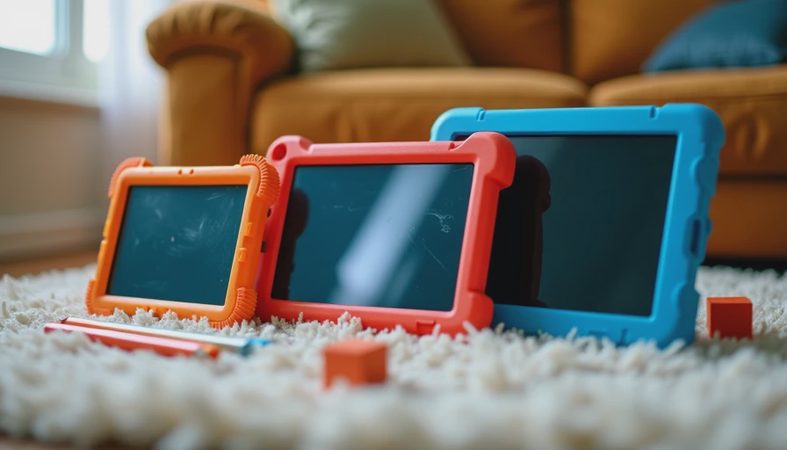
The second common problem is physical. Children carry devices by one corner, leave them on couches, and use them near drinks. A bare glass screen is a poor family strategy. A sturdy case with a raised bezel is more important than a thin design, and a replacement screen can cost enough to make a cheap tablet a bad bargain.
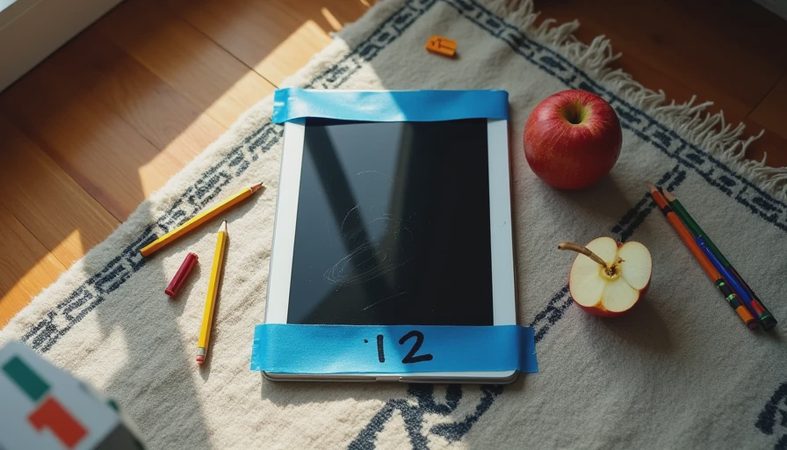
My painter's-tape label goes on every review unit. It has a number, a date, and one rule: it spends at least a week in my son Jonah's hands. That is the Jonah test. If a device requires adult rescue every afternoon, I do not care how impressive the product page looks.

The Features That Actually Matter
Start with storage. For a young child who mostly streams content, 32GB can work, but it leaves little room for downloaded videos, school files, and games. A 64GB kids tablet is a safer starting point, especially if the device supports expandable storage. Do not assume every app can be moved to a memory card; many cannot.
Battery life matters because children notice a dead device immediately. Look for a model that can handle several hours of mixed use rather than trusting a generous manufacturer estimate based on light activity. USB-C charging is convenient because the cable is common, but the charger should remain in a visible household location. We have lost more charging time to missing cables than to weak batteries.
The screen should be bright enough for a car ride or a classroom corner, with viewing angles that do not force a child to hold it perfectly straight. A 10-inch display is comfortable for video and drawing, while an 8-inch model is easier for smaller hands. Resolution matters, but not as much as responsive touch controls and an operating system that receives updates.
Amazon Fire, iPad, or an Android Model?
Amazon Fire tablets are often attractive because the purchase price is relatively low and child-focused bundles commonly include a case. The interface is straightforward for basic video, reading, and casual games. The tradeoff is app availability. Some families discover that a favorite school, messaging, or creative app is unavailable or less polished than its iPad or Android version.
An entry-level iPad costs more, sometimes substantially more, but it usually offers a longer useful life, broad app support, and strong performance. It can be a sensible choice when siblings will share it or when a child needs drawing, video editing, or school software. The risk is financial: dropping a $300-plus device feels very different from damaging a budget model.
A Samsung Galaxy Tab or another reputable Android tablet sits between those options. Android offers flexibility and a large app selection, though parental controls can vary by model and software version. A cheap, unfamiliar Android brand may look like a bargain at $70, yet limited updates and sluggish storage are exactly the reasons that devices come back.
Parental Controls Without Daily Arguments
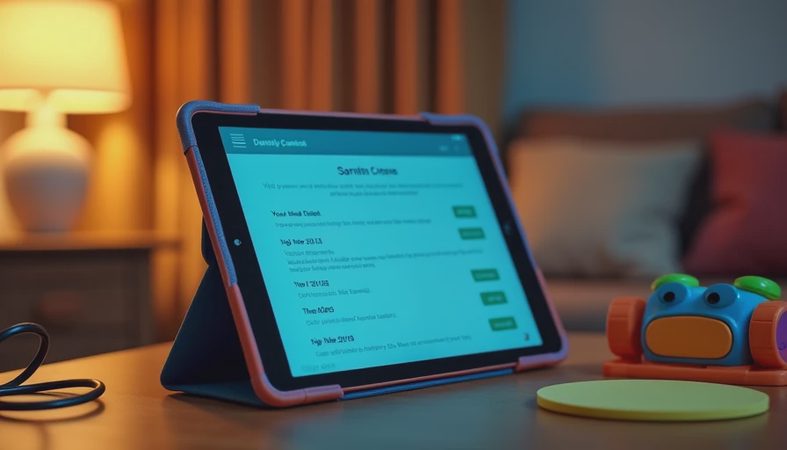
A kids tablet should give adults control over purchases, screen time, web access, and account permissions. Set those controls before handing over the device. Waiting until after the first game downloads six add-ons is how a calm Saturday becomes a customer-service project.
Create a child profile when the software supports one. Use a separate adult password, restrict store purchases, and review browser settings. For younger children, download a small selection of approved apps instead of giving unrestricted access to an entire app store. A timer is useful, but a visible routine works better: reading before games, charging after dinner, and no device during homework unless the teacher requires it.
Test the controls yourself. Can you extend time, approve an app, find a lost device, and remove a downloaded video? If those actions take several confusing menus, the system will frustrate you later. Good parental software should reduce arguments, not create another chore.

Choosing by Age and Daily Use
For preschoolers, durability and simplicity come first. A thick case, large icons, offline videos, and a limited app selection are more valuable than a premium display. Keep the device in one room when possible, and avoid treating it as a babysitter that must entertain a child for hours.
For elementary school children, consider school compatibility, a comfortable keyboard option, and enough storage for reading programs and assignments. This is where a better kids tablet can make sense because the device may serve as both entertainment and a learning tool. A model that was fine for cartoons may feel painfully slow when a child is switching between a browser, document, and video lesson.
For older children, privacy and account management deserve more attention. Talk about passwords, downloads, location permissions, and communication apps. A child who is ready for more independence still needs clear boundaries. Hardware can support that conversation, but it cannot replace it.
My Practical Buying Process
First, set the real budget, including a case, screen protector, charger, and possibly a warranty. A $120 tablet can become a $165 purchase once the necessary accessories are added. Second, list the three apps the child will use most. Confirm that they are available and compatible before buying. Third, choose storage based on downloaded content, not just streaming. Fourth, inspect the return policy and test the device during the first week.
During testing, try video playback, Wi-Fi in different rooms, charging, headphones, app installation, and the parental controls. Let the child use it naturally rather than handling it like a showroom sample. If it becomes hot, freezes, or needs frequent adult intervention, return it while you still can.
The best kids tablet is the one that fits your household's habits and survives ordinary misuse. Spend more when you need longer support, better apps, or school performance. Spend less when the device has a narrow job and you can accept replacement risk. Ignore the hype, buy the case first, and remember the question I use on every review: what comes back after two weeks?


No comments yet — be the first to share a thought.