The Real Requirements Are Different
When adult children or spouses ask me for a tablet recommendation for a parent or grandparent, they often start with the same assumptions they would use for themselves: fastest processor, best camera, newest software. Those priorities rarely match what actually makes a senior happy with the device six months later.
I’ve helped set up tablets for older relatives and watched the same patterns in the returns I used to process. The devices that came back most often from senior users weren’t broken. They were simply too complicated, too hard to read, or too easy to get lost in. I’ve seen what comes back. The successful ones shared a short list of practical traits.
What Matters Most for Senior Users
After years of observation, the priorities look like this:
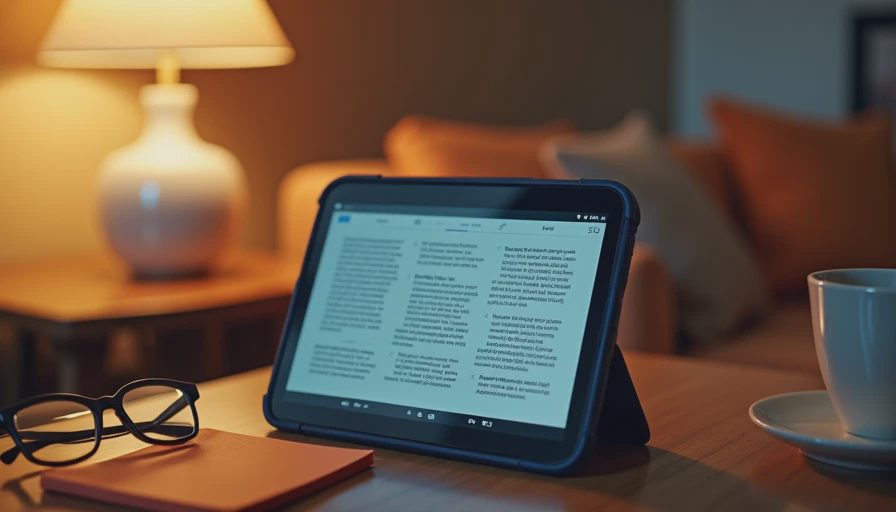
Text and icons that can be made large and high-contrast without breaking the interface
Simple, consistent navigation that doesn’t change dramatically with every update
Strong, straightforward parental-style or guided-access controls so the device can’t wander into confusing territory
Reliable battery life so it doesn’t need constant charging attention
A screen that remains readable in normal living-room light
Speaker volume that is clear without distortion at higher levels
Everything else is secondary. A tablet that fails these basics will sit unused or generate repeated support calls no matter how impressive its specs are.
The Recommendation I Give Most Often
For most seniors I still point to a current base iPad with a few deliberate setup choices. The screen is sharp enough that large text looks clean. iPadOS accessibility settings for text size, contrast, and Zoom are mature and effective. Screen Time or Guided Access can lock the device into a simple set of apps. And the long software support means the tablet is less likely to become awkwardly outdated in two or three years.
I pair it with a solid, easy-to-grip case and, when needed, a simple stylus for those who like to write notes or play certain games. The total setup stays manageable for a non-technical user once the initial configuration is done by a family member.
This is not a claim that Apple is perfect for every senior. It is an observation that the combination of screen quality, accessibility tools, and long-term support has produced fewer long-term complaints in my experience than most alternatives in the same role.
When Android or Fire Makes More Sense
There are clear cases where I recommend something else.
If the budget is tight and the main uses are video calls, streaming, and photo viewing, a current Fire tablet with a simple kids-or-senior-style profile can work well. The interface can be limited, the content can be controlled, and the price is lower. Several families I know have had good results with this approach for pure media and communication.
Some Android tablets also offer large-text modes and simple launchers. When the senior already lives in a Google ecosystem or needs a specific Android app, a carefully chosen mid-range model with strong accessibility settings can be the better fit. The key is testing the text scaling and the simplicity of the home screen before the return window closes.
Setup Steps That Prevent Most Problems
The tablet itself is only half the solution. The initial setup determines whether it stays useful.
I recommend doing the following before handing it over:
Increase system text size and enable high contrast if needed.
Remove or hide every app that isn’t necessary for the intended uses.
Set up a simple home screen with only the core apps visible—video calls, photos, browser, maybe one or two entertainment apps.
Enable any guided-access or screen-time style lock so new apps can’t be downloaded without permission.
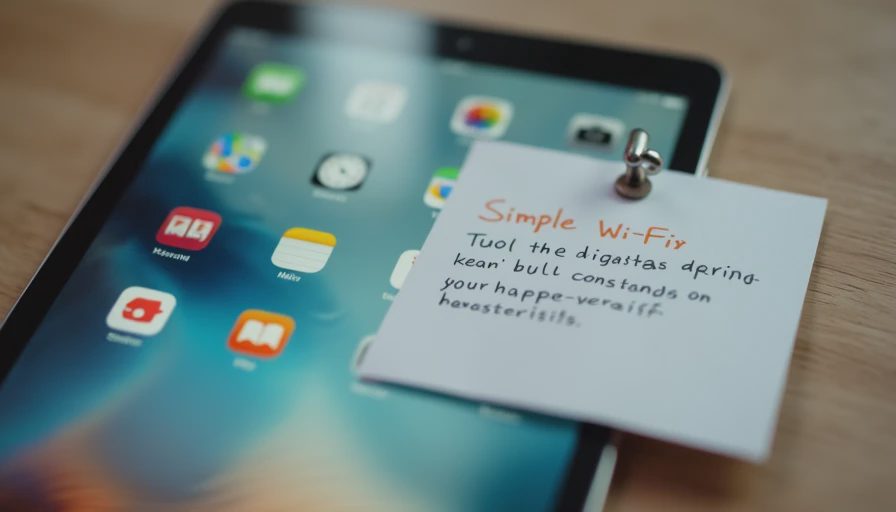
Write the Wi-Fi password and a couple of basic instructions on a paper note that stays with the tablet.
Families that skip these steps often end up providing technical support every week. Families that do them once usually get months of quiet, successful use.
What to Avoid
Skip the largest, heaviest tablets unless the senior specifically wants a big screen and can handle the weight. Skip devices with lots of pre-installed bloat that can’t be removed. Skip anything that requires frequent complex updates or has a history of short software support. And skip the temptation to buy the most expensive model as a gift—the extra features often become extra confusion.
The Longer View
A good senior tablet is one that still feels friendly after the novelty wears off and after the family member who set it up is no longer in the room. It should make video calls easier, photos more enjoyable, and simple browsing less frustrating. If it does those jobs without generating regular troubleshooting sessions, it is a success.
I’ve seen what comes back. The tablets that stayed in seniors’ homes longest were rarely the most powerful. They were the ones that stayed readable, stayed simple, and stayed out of the way. Start with those requirements and the rest of the decision becomes much clearer.
The best tablet for a senior is the one they will still turn on and use with confidence three months from now. Everything else is secondary.



No comments yet — be the first to share a thought.