If you are shopping for an ipad for kids, the obvious answer is usually the wrong one. Parents see a colorful case, a low price, and a familiar Apple logo, then discover two weeks later that the tablet is full, cracked, or locked behind a forgotten password. I spent eight years selling tablets and processing the returns afterward. I've seen what comes back. The best choice is not always the newest iPad; it is the model with enough storage, useful controls, and protection your household can actually manage.
The best iPad starting point for most families
For most households, the current entry-level iPad is the sensible starting point. It handles Disney+, YouTube Kids, school apps, FaceTime, reading, and light games without making a child wait through every tap. Unless your child edits video, draws professionally, or needs a demanding creative app, the extra speed of an iPad Air is difficult to justify for everyday use.
When comparing an ipad for kids, I would prioritize storage before processor performance. A 64GB model can work for a younger child who streams most content, but downloaded videos, games, photos, and school files accumulate quickly. A 128GB or larger option is less stressful if the tablet will be shared by siblings or used on road trips. Paying roughly $100 more for useful storage is often better than buying a faster model that still runs out of room.
Refurbished models can also make sense. Apple-certified refurbished iPads generally receive testing and a warranty, while reputable retailers sometimes sell previous-generation models at meaningful discounts. Avoid a bargain so old that it cannot run current versions of important apps. A cheap tablet that loses software support quickly is not a bargain when you replace it early.
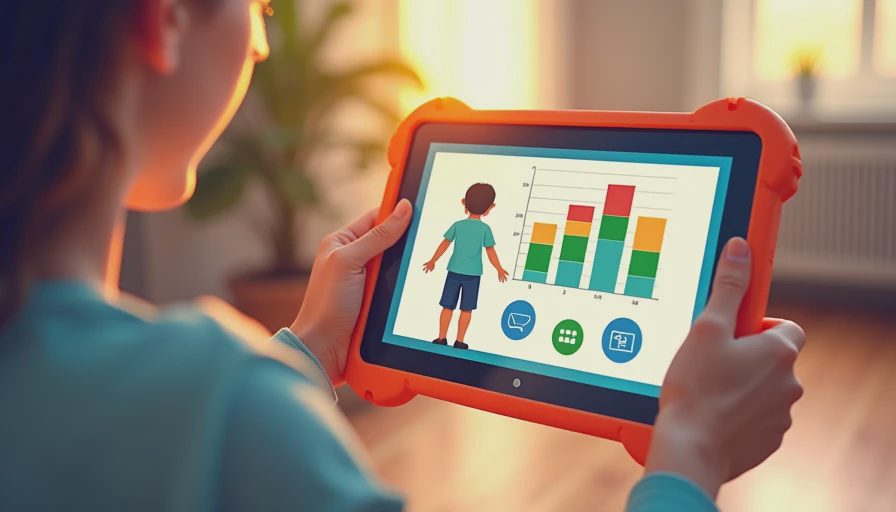
Why the cheapest setup often comes back
The most common return problem I saw was not a defective tablet. It was a parent buying too little storage, no case, and an accessory bundle that looked convenient but was poorly made. The child then filled the device, dropped it, and lost the stylus or charging cable. The family returned the whole package frustrated.
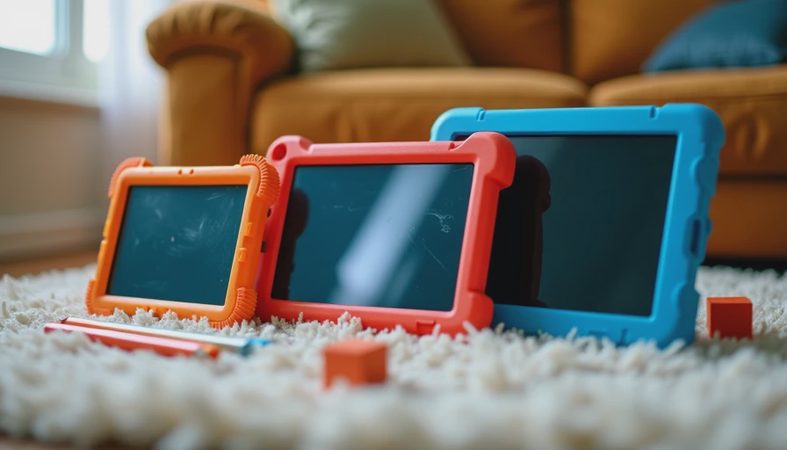
For an ipad for kids, budget for protection from the beginning. A sturdy case with raised edges, a grippy handle, and a covered or reinforced corner is more useful than a thin fashion case. Brands such as OtterBox, Speck, and Logitech make family-friendly options, while lower-cost cases can work if reviews show real drop protection rather than just bright colors. A tempered-glass screen protector adds another layer, but it cannot rescue a tablet that lands on a sharp corner.
Do not assume a rugged case makes the device waterproof. Keep it away from the bathtub, pool, and kitchen sink. If a child uses the tablet in the car, add a secure headrest mount and a short charging cable rather than letting a loose cable become something to pull or chew.
Choosing the right age and screen setup
An ipad for kids under age six should be easy to grip and simple to reset. A standard 10- or 11-inch screen is usually more practical than a smaller phone-sized device because touch targets are easier to hit and two children can watch from the back seat. Younger children benefit from a thick case and limited access more than they benefit from premium display technology.
For elementary school students, the standard iPad provides a good balance. It is large enough for handwriting practice, online assignments, and ebooks, but still portable. An iPad Air becomes more appealing when a student uses Apple Pencil regularly, creates illustrations, or keeps the device for several years. The higher price buys headroom, not automatically better parenting or better grades.
For teenagers, ask how the tablet fits alongside a laptop. If it is mainly for notes, streaming, and communication, an entry model may be enough. If it replaces a computer for design or video work, compare an iPad Air or iPad Pro with a Chromebook or MacBook before spending $600 or more.

Parental controls that parents actually use
Apple's Screen Time tools let you set downtime, app limits, content restrictions, purchase controls, and communication limits. Set these before handing over the device. If you wait until the child has installed games and signed into every service, the conversation becomes a negotiation instead of a setup step.
For an ipad for kids, create a child account through Family Sharing rather than letting a child use an adult Apple Account. Turn on Ask to Buy so app purchases require approval, and disable in-app purchases unless you have a specific reason to allow them. Review location sharing, web content, and multiplayer permissions based on the child's age and maturity.
Parental controls are not a substitute for supervision. Screen Time reports can show that a game is open for three hours, but they do not explain whether it was used for homework or left running. Keep the charging station in a shared room and establish a simple overnight rule. A visible routine works better than constantly confiscating the tablet.
Wi-Fi, cellular, and accessories
Most families should buy the Wi-Fi version. It costs less, avoids another monthly data plan, and works anywhere with home, school, library, or hotel Wi-Fi. Cellular models are useful for frequent travel, a child who needs reliable connectivity away from home, or a family that already understands the carrier cost. Do not buy cellular service just because the option appears in the product listing.
The Apple Pencil can be worthwhile for handwriting and drawing, but it is easy to lose. Younger children often do just fine with a basic stylus costing $10 to $30, while older students may appreciate a compatible Apple Pencil for note-taking. A keyboard is valuable for essays, but a cheap keyboard case can add bulk, disconnect frequently, and make the tablet uncomfortable to hold. Buy the accessory only after you know how the device will be used.
My return-counter buying checklist
Before ordering an ipad for kids, decide the maximum budget and the job the tablet must perform. Confirm the storage capacity, warranty source, return period, and model generation. Add a protective case immediately, then charge and update the device before configuring it for a child.
Next, create the child account, set a passcode that the child does not know, and test Screen Time restrictions with a spare app. Download only the apps you expect to use. If the tablet is for travel, test downloaded video and games in airplane mode before the trip. Finally, label the charger and case. In a busy home, a $15 label or bright cable can prevent a surprising amount of confusion.
My practical pick for most families is a current entry-level iPad with more than the minimum storage, a genuinely protective case, and Wi-Fi connectivity. Spend extra on storage or durability before spending extra on prestige. That combination passes my Jonah test more often than a bare tablet with a premium chip.
Final recommendation
An ipad for kids should be chosen around habits, not marketing. Start with age, storage needs, and whether the device will be shared. Then add protection and parental controls before the first streaming session. An entry-level iPad is enough for most children, while an iPad Air earns its price when drawing, schoolwork, or long-term use demands more performance.
I have watched plenty of parents return an expensive tablet because it was never configured, never protected, or simply more powerful than necessary. The calmer purchase is usually the better purchase. Compare current prices, confirm the return terms, and choose the setup your family can maintain after the unboxing excitement fades.


No comments yet — be the first to share a thought.