
A parental controls tablet setup can turn a capable device into something a child can use without wandering into every corner of the internet. The catch is that the controls need to fit your tablet, your child's age, and your tolerance for daily negotiations. I have processed more tablet returns than most reviewers have published reviews, and confusing family settings are a frequent reason parents bring devices back. I've seen what comes back.
The good news is that you usually do not need an expensive monitoring subscription. Apple iPads, Amazon Fire tablets, and many Android models already include useful tools. You need to know which settings matter, which ones are easy for a child to bypass, and which tablet will remain manageable after the novelty wears off.
What a parental controls tablet setup should include
Start with four basics: a separate child profile, age-appropriate app approvals, a daily screen-time limit, and a purchase lock. Those features solve most of the practical problems families face. A child profile keeps their downloads and recommendations separate from yours. App approvals prevent a seven-year-old from installing games that request chat access or contain aggressive advertising. Screen limits create a stopping point, while a purchase lock protects the credit card attached to the account.
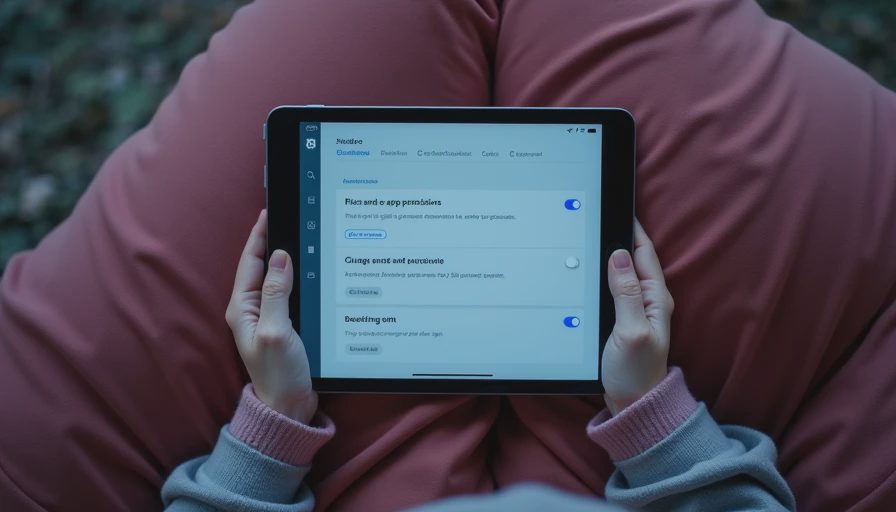
A strong parental controls tablet arrangement should also restrict web content and prevent changes to the settings without an adult passcode. On an iPad, Screen Time can limit apps, block purchases, and filter websites. Amazon Fire tablets use Amazon Kids profiles and parental controls, while Android tablets commonly rely on Google Family Link. The names differ, but the goal is the same: the adult account controls the device, and the child account gets only the access you approve.
Do not confuse a bright screen or rugged case with safety. A $25 case can prevent a cracked corner, but it cannot stop an in-app purchase. Settings do that job.
Apple, Amazon, or Android for family controls?
For many families, the simplest parental controls tablet choice is an iPad if the household already uses Apple devices. Screen Time settings are familiar, app quality is generally strong, and Family Sharing can connect a child's account to an adult's. The downside is price. Even a basic iPad often costs more than a Fire tablet, and replacing it after a drop hurts more.
Amazon Fire tablets are appealing when the budget is closer to $100 than $400. Amazon Kids profiles are designed for children, and the Kids subscription can provide books, games, and videos in one controlled environment. The interface is less flexible than a full iPad, and performance on entry-level Fire models can feel slow after several apps and downloads accumulate. That sluggishness is one reason I have seen parents return the cheapest versions.
Android tablets offer more variety. Google Family Link can manage supervised accounts, app permissions, and time limits, but the experience depends heavily on the manufacturer and Android version. A bargain tablet with weak storage, outdated software, or a cluttered interface may be frustrating even if its controls are technically available. The best deal is not the lowest sticker price; it is the device you can administer in five minutes instead of fighting for an hour.
Set limits before handing over the tablet
The most effective parental controls tablet setup happens before the first handoff. Charge the device, install system updates, create the child profile, and test every restriction yourself. Download one approved game, attempt an unapproved download, try to open a blocked website, and see whether the tablet asks for your passcode. If it does not, fix the setting before your child discovers the gap.
Set a realistic schedule rather than an extreme one. A two-hour entertainment limit on a weekend can be reasonable for some families, while a school night might allow 30 to 60 minutes after homework. Include educational apps in a separate allowance if the software supports it. Otherwise, a child who needs a reading app may use up the entire daily limit before getting to the activity you intended.
Turn off purchases by default. For Apple devices, require the family organizer's approval for downloads and purchases. In Amazon Kids, keep shopping outside the child's profile. On Android, use purchase authentication and Family Link approval. Also disable guest browsing when possible, remove saved payment information from the child-facing profile, and avoid giving the adult passcode to an older sibling who might share it.
The settings parents often overlook
A parental controls tablet can still create trouble through notifications, messaging, and voice assistants. Review every app's permissions, especially access to the microphone, camera, location, contacts, and photos. A drawing app may need photos to import an image, but it should not need contacts. A game that includes chat deserves closer attention than an offline puzzle game.
Check the browser separately from the app store. Blocking mature apps does not necessarily block mature websites, and deleting a browser shortcut does not remove the browser. Use content restrictions, safe-search settings, and a child account with no administrator privileges. These steps are not perfect filters, but they reduce accidental exposure and make the remaining conversations easier.
Notifications deserve a practical review too. A tablet that lights up every few minutes encourages checking, even when the child is supposed to be reading. Turn off promotional alerts, limit video recommendations, and remove social apps that your family does not want used. I would rather see a modest tablet with quiet settings than a powerful one constantly pulling a child back to the screen.

How hardware affects the experience
Controls cannot rescue a tablet that is miserable to use. Look for at least 64GB of storage if the device will hold games, downloaded shows, audiobooks, and school files. Storage fills faster than most parents expect. A microSD card can help on compatible Fire and Android models, but it may not expand every type of app storage.
Battery life matters because children rarely announce that they forgot to charge the device. A tablet that lasts several hours of mixed use is more useful than one with impressive specifications that requires a charger before dinner. USB-C charging is convenient, but inspect the port and buy a short, durable cable rather than leaving a long cable stretched across the floor.
For younger children, spend money on a case before paying extra for a faster processor. A thick case with a handle, a raised screen edge, and covered ports can save a $150 repair. For older students, prioritize a sharp enough display, comfortable size, and keyboard compatibility if schoolwork is involved. The right parental controls tablet is still a bad purchase if it cannot handle the child's actual workload.
A practical buying decision
If you want the cleanest family experience and already own Apple products, an entry-level iPad is usually the least confusing route. If the main goal is videos, reading, and a controlled set of games at a lower price, an Amazon Fire Kids model deserves a look. If you want flexibility and already understand Android settings, choose a reputable Android tablet with current software and enough storage, then use Google Family Link.
Avoid buying based solely on a huge screen, a low price, or a long list of included games. Ask who will manage the account, whether the software receives updates, how much storage remains after setup, and whether the return policy gives you time to test restrictions. I recommend running the full setup during the first evening, not after a child has already built a profile around unrestricted access.
The best parental controls tablet is the one that makes boundaries visible and administration boring. Set the rules, test them, and explain them plainly. A child may still negotiate for ten more minutes, but you will not be discovering surprise subscriptions or unfamiliar chat apps at bedtime.
Final advice before you buy
Take a few minutes to compare the actual control screens, not just the product photos. Check the tablet's operating system, account requirements, storage, case options, and replacement cost. A $90 device that needs a paid monitoring service can cost more over a year than a $180 model with useful controls already included.
For most homes, consistency matters more than technical perfection. Use one adult account, one child profile, a clear schedule, and a passcode your child cannot guess. Review installed apps once a month and adjust limits as school, sports, and sleep schedules change. That routine will do more than a flashy feature list. When a parental controls tablet is chosen with those habits in mind, it can be a useful family tool instead of another gadget that gets returned.


No comments yet — be the first to share a thought.