Tablet software updates are easy to ignore when you are standing in a store comparing screen sizes and storage. I understand the temptation. After eight years in a big-box electronics department, I saw customers spend an hour debating processors and about thirty seconds asking how long the tablet would stay current. Then I saw many of those same tablets come back. I've seen what comes back, and outdated software is one of the quiet reasons.
A tablet that feels fast today can become frustrating when apps stop supporting its operating system, security patches slow down, or a video service changes its requirements. The right tablet software updates do not make an inexpensive tablet feel premium, but they can keep it useful for school, reading, streaming, banking, and family video calls for much longer.
Why tablet software updates matter after the sale
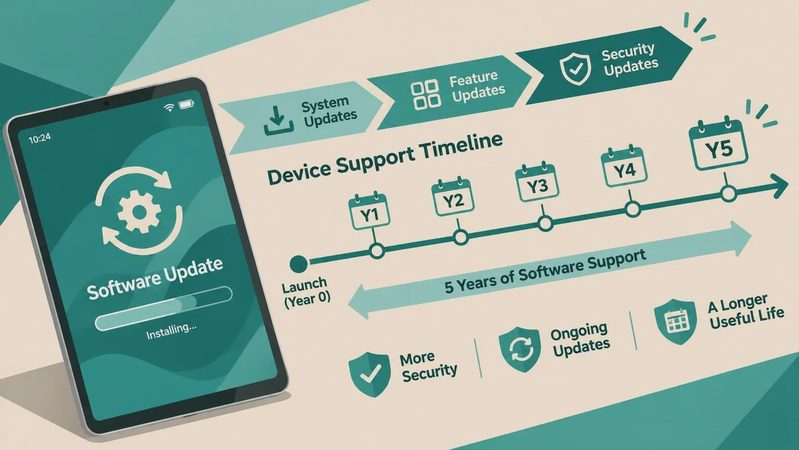
A software update can do several different jobs. An operating system upgrade might add a redesigned multitasking menu or better parental controls. A security update is usually less exciting, but it helps address newly discovered weaknesses. App updates are separate, although they often depend on the tablet running a recent enough version of iPadOS, Android, or Fire OS.
That last point causes plenty of returns. A buyer purchases a budget tablet for $120, installs a favorite drawing app, and discovers that the current version requires newer software. The tablet itself is not necessarily broken. It simply has reached the practical edge of its support. That is why tablet software updates belong in the buying decision, right beside battery life and storage.
Manufacturers also use updates to fix rough launch behavior. A new model can have battery drain, unreliable Bluetooth, or an awkward camera app during its first few months. A later update may smooth out those problems. I never treat a launch-day review as the final word, especially on a tablet with an unfamiliar interface.
How Apple, Samsung, Amazon, and Lenovo differ
Apple usually has the clearest update experience. iPads receive major iPadOS releases through the same Settings process, and older compatible models often remain useful for years. Apple does not support every feature on every older iPad, so compatibility still matters. A basic iPad from a recent generation is often a safer long-term purchase than an older model with a larger screen.
Samsung has improved its long-term support approach, especially on newer Galaxy Tab models. The exact promise depends on the model and release date, so read the support details for the specific tablet rather than assuming every Galaxy Tab receives identical treatment. Samsung's interface also adds useful features, but those extras can make the device feel more complicated to a senior or young child.
Amazon's Fire tablets are inexpensive and straightforward for streaming, reading, and casual games. Their software is built around Amazon services, which is fine if your household already uses Prime Video, Kindle, and Alexa. They are less flexible than an iPad or standard Android tablet, and tablet software updates on low-cost Fire models should not be treated as an unlimited support guarantee.
Lenovo sells everything from simple entertainment tablets to more capable Android models. Update consistency can vary across the product range. The bargain model that saves $50 at checkout may be a poor value if you expect five years of demanding apps. Product pages and the manufacturer's support information are more useful here than a sales label that says “new.”
What to check before buying
Start with the tablet's release date, not only the date you found it on sale. A tablet introduced two years ago may be sitting in a warehouse with a lower price, but part of its support life has already passed. This is especially important during holiday promotions, when old stock can look like a spectacular bargain.
Next, open the manufacturer's support page and search the exact model number. “Galaxy Tab S” or “Fire HD” is not specific enough. Look for the operating system version, security update information, and any published support period. If the page is vague, assume the software future is less certain rather than paying extra for a feature you cannot verify.
Check storage, too. A tablet with 32GB may show enough free space on day one, but system files, downloaded shows, photos, and app caches gradually consume it. When storage becomes crowded, updates can fail. I generally prefer at least 64GB for a family tablet and 128GB for someone who keeps games, videos, or creative projects locally.
Finally, ask whether the tablet supports the apps you actually use. A child may need Google Classroom, a parent may depend on a banking app, and a retiree may care more about Zoom and large text. Compatibility is more valuable than a benchmark score if the device's main job is simple.
How to manage updates without surprises
After setup, connect the tablet to reliable Wi-Fi and install available updates before handing it to a child. Keep it plugged in during a major operating system upgrade, and avoid starting the process when you need the device for a flight or school assignment. A backup is sensible before a large upgrade, particularly if the tablet stores photos or notes that are not synchronized elsewhere.
Turn on automatic updates when the device offers that option, but do not assume every app updates automatically. The App Store, Google Play, or Amazon Appstore has its own update controls. Review them occasionally. If an app suddenly changes appearance, that is often an app update rather than a tablet software updates issue.
Leave free storage available. I aim for several gigabytes on a regularly used tablet, more if a major update is expected. Delete downloaded movies, duplicate photos, and games nobody opens. A simple cleanup can prevent the frustrating “not enough space” message that makes a perfectly usable tablet seem defective.
Some people delay every update because they fear change. That is understandable, but never installing security fixes is a poor habit. Read early user reports for major releases, then install once obvious bugs have been addressed. For a child’s tablet, parental controls and account settings deserve a quick check after the update.
Warning signs a tablet is aging out
The clearest warning is an app that says your operating system is no longer supported. Another is a tablet that has not received a security update for a long time, especially if the manufacturer offers no explanation. Slow performance alone does not prove the software is obsolete; a nearly full storage drive, aging battery, or too many background apps can create the same symptom.
Watch for missing features after a major update as well. Older hardware may receive the new operating system but not every capability. That is not automatically a problem. If the tablet still handles your daily tasks, it can remain a good device. The problem is buying an old model at a price that assumes a long future when its practical support window is already narrowing.
A $200 tablet used for email and recipes can be perfectly adequate for several years. A $200 tablet expected to edit video, run demanding games, and serve as a laptop replacement will disappoint sooner. Match your expectations to the hardware and the update path.
A sensible buying plan
Before checkout, write down the exact model, storage capacity, release date, and operating system. Search that model on the manufacturer's support site. Confirm that your essential apps are available, then compare the total price with a newer model one step up. Spending an extra $50 to $100 can be worthwhile if it buys newer hardware, more storage, and a clearer support outlook.
For most people, I would rather recommend a current midrange iPad or Galaxy Tab than an older flagship discounted to the same price. The older tablet may have a brighter display, but a newer midrange model often gives you a healthier battery and more remaining tablet software updates. For basic streaming, an Amazon Fire tablet can still make sense when its limitations fit the household.
My return-counter rule is simple: buy for the years you plan to use the device, not the excitement of today's discount. Check tablet software updates before you compare accessories, keyboard cases, or styluses. A tablet that keeps receiving dependable support is usually the one you will still be happy to own after the return window closes.
No comments yet — be the first to share a thought.