Buying a drawing and graphics tablet is less like choosing a faster phone and more like choosing a desk chair. The headline specifications matter, but the thing you notice after two weeks is whether it feels natural, stays connected, and makes you want to use it. I've processed more tablet returns than most reviewers have published reviews, and I've seen what comes back. Usually, it is not the tablet with the lowest resolution. It is the one that creates friction every time the owner tries to draw.
Start with the type of tablet you actually need
There are three main categories. A pen tablet, such as the Wacom Intuos or XP-Pen Deco series, has a flat drawing surface and no screen. You connect it to a Windows or Mac computer and watch the cursor on the monitor. It is affordable, durable, and often the smartest first purchase. The adjustment period usually lasts a few practice sessions, not months.
A display tablet puts the drawing surface directly on the screen. Wacom Cintiq, Huion Kamvas, and XP-Pen Artist models fit here. Drawing feels more immediate because your hand and the mark appear in the same place. The tradeoff is cost, cables, heat, and a larger footprint. A good display model often costs between $200 and $800, while professional versions can go higher.
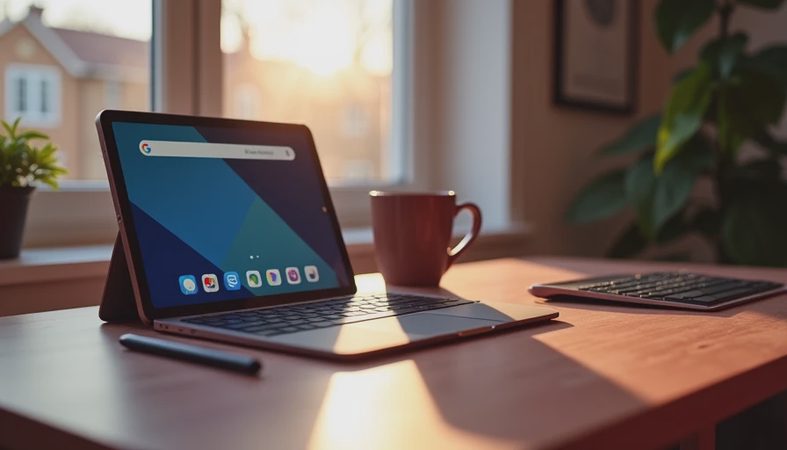
An iPad, Samsung Galaxy Tab, or similar standalone device runs drawing apps without a computer. It is the most portable choice, but you are paying for a complete computer, not only a stylus surface. That can be excellent for school, travel, and couch sketching. It can also be wasteful if the device will stay beside a desktop all day.

The pen matters more than the marketing number
Brands like to advertise 8,192 levels of pressure sensitivity, but that number is not a buying decision by itself. Most current pens offer enough sensitivity for serious illustration. The better questions are whether pressure changes feel smooth, whether the pen has useful shortcut buttons, and whether replacement nibs are easy to find.
Tilt support is valuable for shading with a pencil or brush that responds to angle. It matters less for basic note-taking, photo editing, or simple coloring. Battery-free pens are another practical advantage. Wacom, Huion, and XP-Pen commonly offer them on their dedicated tablets, so you do not have to remember to charge a stylus before a deadline.
Pay attention to the pen grip. A very light stylus can feel cheap, while an overly heavy one becomes tiring during a three-hour project. I once recommended a technically impressive model that felt awkward after a long illustration session. That was my mistake: I had focused on the specification sheet instead of the hand holding the pen.
Screen size, surface texture, and shortcuts
For a non-screen drawing tablet, active area is more important than the tablet's overall dimensions. A small model around six by four inches fits a laptop bag and works well for occasional editing. A medium model around ten by six inches gives the wrist more room and often feels better for detailed illustration. Large models are comfortable, but they need desk space and usually cost more.
On-screen tablets bring different concerns. A 13-inch display is portable and commonly costs less, but a 16-inch or 22-inch model makes large canvases easier to manage. Check resolution, viewing angle, and parallax, which is the visible gap between the pen tip and the mark. A textured surface can provide paper-like resistance, but replacement films eventually become another expense.
Shortcut keys are useful when they are positioned well. Undo, brush size, zoom, and pan are the buttons I use most. A tablet with 20 controls is not automatically better than one with eight. In practice, many artists disable half the keys because accidental presses interrupt their work.
Compatibility prevents the most frustrating returns
Before ordering a drawing and graphics tablet, check the operating system, drawing software, and available ports. Windows and macOS support is common, but the exact driver experience can differ. ChromeOS and Android support exists on selected products, not every model. An iPad requires a compatible Apple Pencil, and some older iPads do not support the newest stylus generation.
Also check your software. Photoshop, Illustrator, Clip Studio Paint, Krita, and Affinity applications can work well, but features such as pressure sensitivity or shortcut controls may require driver settings. If the tablet connects through USB-C and your computer has only USB-A ports, you may need an adapter. Cheap adapters sometimes cause intermittent connections, which leads to the classic return complaint: “It worked yesterday.”
Install the current driver from the manufacturer's website, restart the computer, and test pressure in a simple brush before starting a project. Save a working driver version if an update causes trouble. This five-minute check can prevent an evening of troubleshooting.

How the popular brands differ in daily use
Wacom remains the safest premium choice for many buyers because its drivers, pen feel, and accessory ecosystem are mature. You pay for that consistency. An entry-level Wacom can cost more than a larger competing tablet, so it is not automatically the best value for a beginner.
XP-Pen and Huion usually compete aggressively on size and price. Their drawing surfaces can feel excellent, especially in the midrange, but software setup deserves closer attention. Some buyers get a lot of capability for $50 to $250; others dislike having to troubleshoot after an operating system update.
Apple is a strong option when portability and polished software matter. The iPad experience is quiet, responsive, and easy to carry, but the tablet and Pencil together can pass $500 before buying a drawing app or keyboard. Samsung offers a similar standalone route with Galaxy Tab models and S Pen support on selected devices.
The sensible choice is the one that matches your workflow. A freelance illustrator may appreciate a 22-inch display. A student may prefer a $70 pen tablet that slips into a backpack. A parent sharing a computer might get more use from an iPad because it can also handle reading, video calls, and schoolwork.
A practical buying checklist
Start by writing down where you will draw: desktop, laptop, classroom, or sofa. Then decide whether looking at a monitor feels acceptable. If yes, a non-screen tablet is usually the value winner. If no, compare display tablets or standalone devices.
Set a real budget that includes the pen, cable, stand, replacement nibs, screen protector, and software. A tablet advertised at $180 can become a $240 purchase after accessories. Look for current driver downloads and replacement parts before checkout. That is especially important with lesser-known brands.
Finally, test the return policy and inspect the package immediately. Draw diagonal lines, slow curves, tiny details, and broad strokes. Test every shortcut button and try your preferred app. Two weeks of normal use will reveal more than a dramatic unboxing video.
My bottom-line recommendation
For a first drawing and graphics tablet, I would start with a medium pen tablet from Wacom, XP-Pen, or Huion if the buyer already owns a computer. It keeps the price reasonable and teaches the core hand-eye skill without paying for a second screen. Choose a display model when direct-on-screen drawing is central to the work, not simply because it looks more professional.
The best drawing and graphics tablet is the one that disappears while you use it. If the pen skips, the surface feels unpleasant, or setup requires constant repairs, an impressive specification list will not save the purchase. Spend on comfort, compatibility, and dependable support first. That is the pattern I have seen after thousands of returns, and it is still the advice I give friends before they hand over their money.


No comments yet — be the first to share a thought.