The Surface Pro is one of those devices that looks perfect on a store shelf: a bright touchscreen, a detachable keyboard, Windows in a thin body, and a kickstand that makes it feel more flexible than a normal laptop. After eight years handling tablet sales and returns, I know the catch. People love the idea of the Surface Pro, then return it because they bought a tablet when they really needed a laptop. I've processed more tablet returns than most reviewers have published reviews, and the details matter here.
My short version is simple: the Surface Pro is excellent for people who want Windows in a tablet shape, especially students, mobile professionals, and households already using Microsoft 365. It is less convincing as a cheap family tablet or a laptop replacement if you refuse to buy the keyboard separately. I've seen what comes back, and the keyboard issue is near the top of the list.
What the Surface Pro does better than most tablets
The biggest advantage is software. An iPad or Android tablet can handle browsing, streaming, email, and most schoolwork, but the Surface Pro runs the full Windows desktop. That means you can use traditional versions of Microsoft Excel, Adobe apps, accounting software, browser extensions, and school portals without hunting for a mobile substitute.
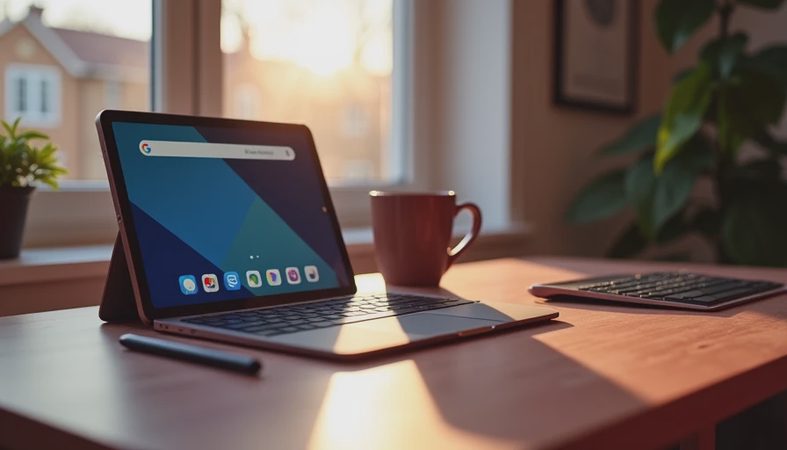
The kickstand is also genuinely useful. Set it at a kitchen table for a video call, flatten it slightly to write with a pen, or use it upright on an airplane tray. The screen feels closer to a small laptop display than a typical tablet panel. Newer models also offer sharper screens, modern processors, and better cameras than older Surface hardware.
The Surface Pro is unusually good for handwritten notes and digital sketching. A compatible Surface Slim Pen can make diagrams, mark up PDFs, and turn a meeting document into something you can annotate naturally. The pen is another accessory cost, but for a college student or illustrator, it can be more valuable than a faster processor.

The keyboard changes the buying decision
Here is the part store displays tend to hide: the base tablet and keyboard are often sold separately. A current Surface Pro with a keyboard and pen can land well above $1,000, while an older or refurbished setup may cost closer to $500 to $800. The lower price looks attractive until you realize typing a long essay on a virtual keyboard is miserable.
The Type Cover is thin and convenient, but it does not feel exactly like a sturdy 15-inch laptop keyboard. It can flex on a lap, and the trackpad is compact. On a desk, I can type comfortably. On a couch, I would rather use a conventional laptop. That distinction explains many returns: buyers test the device in a store, then discover their everyday position is less forgiving.
Before purchasing, place the keyboard in your likely environment. If you work at a desk, the Surface Pro can be a great two-in-one. If you type while standing, travel constantly, or use a laptop on your knees, compare it with a Lenovo Yoga, HP Spectre x360, or standard Surface Laptop. Those machines sacrifice tablet convenience but usually provide a sturdier typing experience.
Which Surface Pro buyer gets the best value?
For a student, the Surface Pro makes sense when classes require Windows programs, handwritten notes, and a light backpack. A model with 16GB of memory and at least 256GB of storage is a sensible starting point. Eight gigabytes can handle basic school tasks, but it leaves less room for heavy browser use, Teams, large PDFs, and creative applications.
For a professional, the Surface Pro is strongest as a travel computer. It is easy to carry into a client meeting, remove the keyboard for reading, and reconnect to a monitor at home. Video calls, documents, spreadsheets, and presentations are well within its comfort zone. Buyers who edit large videos, run virtual machines, or compile code for hours should look at a full laptop with stronger cooling and more ports.
For a parent, the Surface Pro can cover homework, streaming, browsing, and occasional work in one device. Still, it is an expensive object for a seven-year-old to carry around. My painter's-tape test label goes on every review unit, and it must pass the Jonah test before I recommend it to families. A protective case, accidental-damage coverage, and a separate kid-friendly tablet may be smarter than treating this as a shared toy.
Surface Pro battery life, ports, and everyday annoyances
Battery life depends heavily on screen brightness, video calls, connected accessories, and the processor configuration. Expect a workday to be possible with moderate use, but do not assume every model will last from an early lecture through an evening flight without a charger. Older batteries are an especially risky purchase because capacity declines with age.
Port selection is another practical limitation. A slim Surface Pro may offer only USB-C connections, so a dock or small hub becomes useful for an external monitor, wired accessories, or a full-size memory card. That is not a dealbreaker, but it adds another item to pack. The microSD slot found on some older versions should not be assumed on newer hardware.
The kickstand also takes more table space than a conventional laptop hinge. On a narrow airplane tray, it can feel awkward. The fanless or quiet design of some configurations is pleasant in a library, while more demanding versions can become warm under sustained work. None of these issues appears in a ten-minute demo, which is why I pay attention to returns rather than just first impressions.

How to avoid buying the wrong model
Start with your software, not the color or processor name. Write down the three programs you use most. Confirm that they run on the Windows version and processor in the exact model you want. Then decide whether you need cellular connectivity, because a Wi-Fi model is cheaper but depends on a phone hotspot or available network when traveling.
Next, budget the complete setup. Include the keyboard, pen, protective sleeve, USB-C charger, and possibly a dock. A device advertised at $799 can become a $1,050 purchase after accessories. During sales, Microsoft, Best Buy, and other major retailers often discount bundles more heavily than the tablet alone, so compare the final checkout prices rather than the headline number.
Finally, check the return window and inspect the keyboard immediately. Test Wi-Fi, Bluetooth, camera quality, speakers, pen response, charging, and your most important apps during the first two days. Save your work in OneDrive or another backup service before installing everything. If the typing angle already feels wrong, more setup time will not fix it.
My honest Surface Pro verdict
I recommend the Surface Pro when portability, Windows software, touchscreen use, and pen input all matter. It is a clever tool for a student who annotates readings, a consultant who travels, or a household that wants one compact computer for mixed tasks. The best experience usually comes from 16GB of memory, 256GB or more of storage, and a discounted keyboard bundle.
I would skip it for anyone seeking the simplest Netflix-and-web tablet, the lowest-cost family device, or the most comfortable laptop keyboard. An iPad may be better for polished tablet apps, while a Surface Laptop or Lenovo Yoga may be better for all-day typing. The Surface Pro is not automatically the best of both worlds; it is a compromise that works extremely well for the right routine.
Before you buy, hold the complete setup, not just the tablet. Type a page, use the kickstand on your lap, check the ports you actually need, and add every accessory to the budget. If that test feels natural, the Surface Pro can stay useful long after the unboxing excitement fades.


No comments yet — be the first to share a thought.