
A kids tablet with parental controls sounds like a simple purchase until you are staring at 14 nearly identical listings, three app stores, and a child asking when the box will arrive. I have processed more tablet returns than most reviewers have published reviews, and the same problems show up repeatedly: weak parental settings, slow hardware, confusing accounts, and cases that crack before the first school break. The best choice is not always the most colorful device or the one with the longest battery claim. It is the tablet you can set up in one sitting and still manage six months later.
What parental controls should actually do
A useful kids tablet with parental controls needs more than a cartoon home screen. Start with separate child profiles, approval for app downloads, web filtering, purchase restrictions, and a reliable bedtime schedule. You should be able to set a daily limit, pause the device remotely, and see which apps are being used without digging through five menus.
Amazon Fire Kids tablets make these controls fairly approachable through Amazon Kids. Google Family Link provides similar management for many Android tablets, while Apple uses Screen Time and Family Sharing on iPads. The names differ, but the practical test is the same: can you change the rules from your phone while your child is already using the tablet?
Do not confuse a rugged case with parental control software. A thick case helps with drops, but it cannot stop a child from buying game currency or opening an unrestricted browser. Also look for a clear way to disable guest access. A child who can switch profiles easily can often bypass the limits you carefully created.

The hardware problems that cause returns
The most common reason parents return a kids tablet with parental controls is not that the controls fail. It is that the tablet is painfully slow. A low-cost model with limited memory can take 10 seconds to open a learning app, freeze during video playback, or reload a game every time a child switches screens. That turns a $100 bargain into a daily argument.
For younger children, 32GB of storage can work if downloads are controlled and streaming is common. For offline videos, several games, audiobooks, and school apps, 64GB is a safer starting point. Storage expansion through a microSD card is useful on some Fire and Android models, but it does not always solve slow internal performance.
Screen size matters too. An 8-inch tablet is easier for small hands and usually costs less, while a 10-inch screen is more comfortable for reading, drawing, split-screen homework, and watching a movie in the back seat. I would rather buy a responsive 8-inch device than a sluggish 10-inch model with impressive-looking specifications.
Fire Kids, Android, or iPad?
Amazon Fire Kids models are often the straightforward value pick. They commonly include a protective case and a child-focused software experience, and Amazon Kids makes time limits and content approvals relatively easy to understand. The tradeoff is the Amazon app ecosystem. Some popular Android apps are unavailable, behave differently, or require extra workarounds.
An Android tablet paired with Google Family Link gives families access to the Google Play Store and a broader selection of apps. Samsung Galaxy Tab A models are common examples, though pricing and performance vary by generation. The setup is more flexible than a dedicated child tablet, but that flexibility means parents must spend more time checking permissions, browsers, and account settings.
An entry-level iPad offers the strongest app selection and generally smooth performance, but the purchase price can quickly reach $300 or more before adding a case. Screen Time is powerful once configured, yet the process is less child-specific than Amazon Kids. An iPad can make sense when adults will share it or when a child needs creative and school apps that are not available elsewhere.
The right platform depends on the apps your family already uses. If your child needs Google Classroom, a specific reading program, or a drawing app, verify compatibility before buying. A tablet that technically supports parental controls but cannot run the required app is still the wrong tablet.
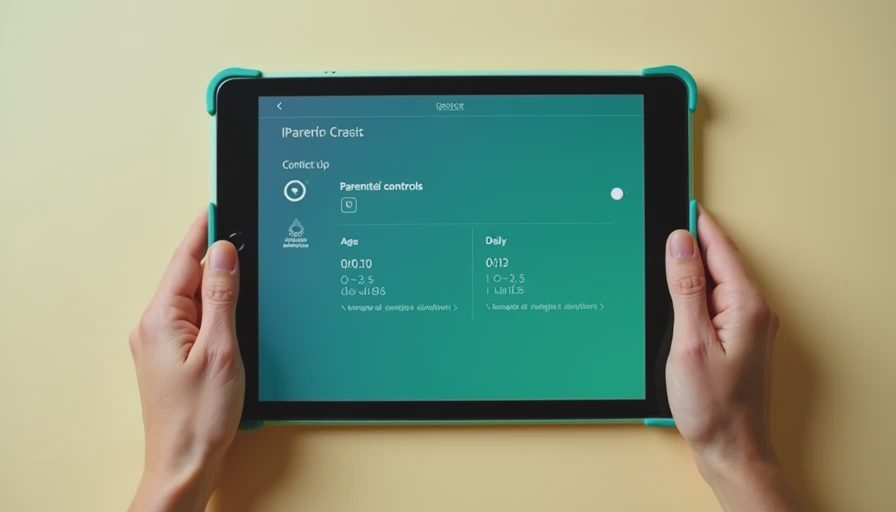
Set it up before handing it over
The first setup is where many families lose control. Create the parent account with an email address and password your child cannot access. Install system updates before downloading games. Then create a child profile rather than handing over the adult profile with a few restrictions turned on.
Next, test the limits yourself. Try downloading an unapproved app, opening the browser, making an in-app purchase, and extending the screen-time schedule. If you can bypass a setting in two taps, your child probably can too. Add only age-appropriate apps at first. It is easier to approve new choices than to remove a dozen distracting games after the tablet becomes cluttered.
Set the bedtime cutoff earlier than the actual lights-out time. A child may need a few minutes to finish an audiobook or save a game, and a sudden shutdown creates unnecessary drama. I also recommend turning off one-click purchasing and storing the charger in a common area. Charging at the kitchen counter prevents the tablet from becoming an all-night bedroom device.
Costs that are easy to overlook
The advertised tablet price is rarely the complete cost. A sturdy replacement case can add $20 to $50. A screen protector, headphones, and a larger microSD card can add another $25 to $60. Some kid-focused bundles include a subscription to educational and entertainment content, but read the renewal terms before the trial ends.
For many families, a practical budget is about $130 to $220 for a child-focused Fire or Android setup, including a case. A shared iPad setup can cost considerably more, especially with storage upgrades and AppleCare+. That higher cost can still be sensible if the tablet will serve a student for several years, but it is not automatically better for a preschooler who mainly watches downloaded cartoons.
Remember that a kids tablet with parental controls may need a replacement charger after the original disappears. Buy a reputable spare with the correct power rating rather than the cheapest unbranded option. Small savings are not worth overheating, unreliable charging, or a tablet that is dead during a road trip.
My practical buying checklist
Before ordering, confirm the exact model year and storage capacity. Retail listings sometimes place different generations under nearly identical names. Check whether the included case covers the corners, whether the tablet has a front camera for video calls, and whether the charger is included.
Then answer four questions. Can the device run every required school or reading app? Can an adult approve downloads without entering a password in front of the child? Will the battery last through a school day or a long drive? Can you afford to replace it if the screen breaks outside the warranty?
If the answer to those questions is yes, you are probably looking at a good fit rather than a flashy deal. My favorite kids tablet with parental controls is the one that matches the child’s age, the family’s app ecosystem, and the parent’s patience for setup. I have seen what comes back, and it is usually not the device with the least exciting specifications. It is the device that created daily friction. Spend your money on dependable performance, a real case, and controls you will actually use.


No comments yet — be the first to share a thought.