I have processed more tablet returns than most reviewers have published reviews, and drawing tablets produce some of the most predictable ones. A shopper buys a glossy screen, downloads an art app, then discovers the pen feels slippery, the shortcut buttons are missing, or the tablet cannot run the software they wanted. Finding the best drawing tablet is less about chasing the newest processor and more about matching the device to how you actually draw.
Start with the kind of tablet you need
There are three basic categories. A pen display, such as a Wacom One 13 or Huion Kamvas 13, has a screen you draw on but usually needs a Windows or Mac computer. It can be excellent for a home desk, but the extra cables and computer requirement create immediate buyer's remorse for people expecting a stand-alone device.
A graphics tablet, such as the Wacom Intuos, has no screen. You draw on its surface while watching a monitor. It takes a few days to build hand-eye coordination, but it is inexpensive, portable, and surprisingly capable. The small Intuos models often sell around $50 to $100, while larger versions can cost $200 or more.
A stand-alone tablet runs its own apps. iPad models with Apple Pencil support, Samsung Galaxy Tab devices with an S Pen, and some Windows 2-in-1 laptops belong here. For most beginners, this is the easiest route because there is no computer connection to troubleshoot. When readers ask me for the best drawing tablet for school, travel, and casual illustration, I usually start with this category.
The important question is not whether a tablet has 8,192 pressure levels. It is whether the pen, screen, software, and workflow fit your daily use.
My practical picks by budget
Under $100, the Wacom Intuos Small remains a sensible first purchase for someone who already owns a computer. It has dependable driver support and a familiar drawing surface, but the active area is compact. That is fine for icons, notes, photo edits, and simple line work. A larger Huion Inspiroy or XP-Pen Deco can offer more room for similar money, though setup support and long-term driver polish are less consistent from model to model.
Between $250 and $450, an iPad with Apple Pencil compatibility can be the most flexible choice. Procreate is popular for illustration, while apps such as Adobe Fresco and Clip Studio Paint cover different workflows. Remember to price the pencil, case, and possibly storage. A tablet advertised at $349 can become a $450 purchase after accessories.
For Android users, a Samsung Galaxy Tab with an included S Pen is attractive because the pen is bundled on many models. Samsung Notes is excellent for handwriting, and drawing apps are available through Google Play. Artists who need desktop applications may prefer a Windows Surface device, but those machines can cost considerably more and may have shorter battery life under heavy creative work.
At the premium end, an iPad Pro or a Wacom Cintiq makes sense for a professional who knows exactly why the upgrade matters. For everyone else, the best drawing tablet is usually one tier below the model that appears in every YouTube thumbnail.
The features that matter after the first week
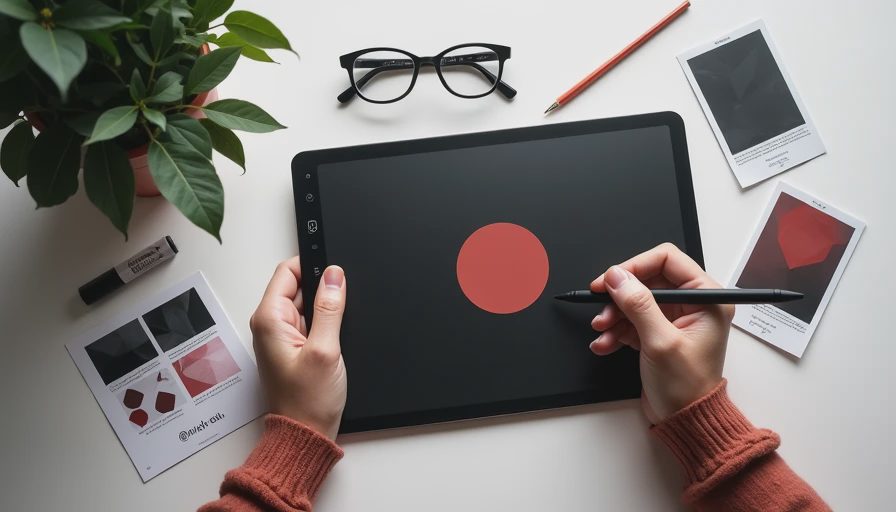
Pen feel comes first. A good stylus should track the tip accurately, support pressure changes smoothly, and avoid noticeable wobble when you draw slow diagonal lines. The glass surface on many iPads feels slick. A matte screen protector can add friction, but it also changes clarity and nib wear. That is a trade-off, not a free upgrade.
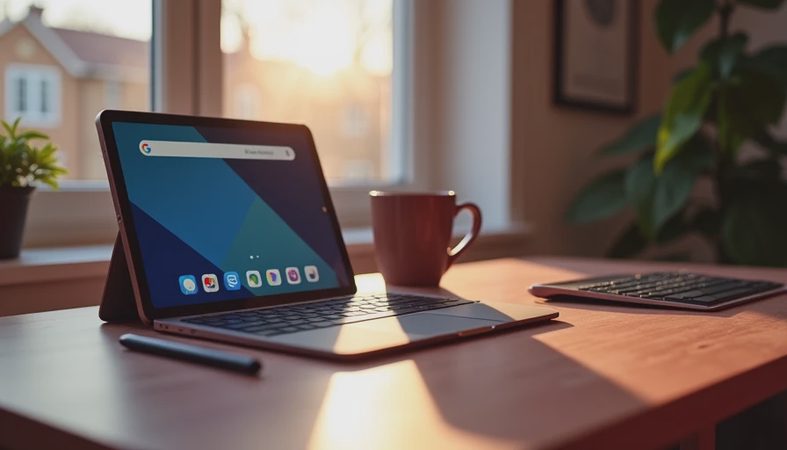
Screen size matters more than resolution for many artists. A 10.9-inch display is comfortable for sketches and coloring, while a 12.9-inch or larger screen gives timelines, layers, and reference images more breathing room. If you plan to draw at a desk for hours, a stand and full-size keyboard may improve comfort more than another hundred dollars spent on processor speed.
Shortcut controls are convenient, not essential. Wacom and Huion pen displays often include express keys, while iPads rely on touch gestures or a separate keyboard. Before choosing the best drawing tablet, list the actions you repeat most: undo, zoom, rotate canvas, change brush size, and switch layers. Then confirm the device supports those actions without awkward menus.
Storage is another return trigger. Art files, reference photos, downloaded brushes, and video can consume 64GB quickly. A 128GB device is a safer starting point for students and hobbyists. Cloud storage helps, but it should not be your only backup for finished work.
Software compatibility can decide the purchase
Before ordering, write down the exact apps you intend to use. Procreate is designed for iPadOS, so it is not available on Android tablets. Clip Studio Paint works across several platforms, but its subscription and feature structure differ by device. Krita is a strong desktop option and has mobile availability, yet the experience is not identical everywhere. Adobe apps also vary in tools and file handling between desktop and mobile versions.
This is where many “best drawing tablet” lists fall short. They name hardware without asking what the buyer already owns. If your school requires Photoshop on Windows, an iPad may be a poor replacement even if it is wonderful for sketching. If your goal is character art on the couch, a computer-dependent Wacom display may feel needlessly restrictive.
Check file formats, too. PSD support, cloud syncing, and font handling can matter when you move work between devices. A cheap tablet is not a bargain if your completed illustrations require repeated exports and repairs.

How I would choose one for common buyers
For a child or casual beginner, I would start with a small Wacom Intuos if a family computer is available. It is affordable enough to explore without making the purchase feel permanent. For a college student who wants notes and art in one bag, an iPad Air with a compatible Apple Pencil is a balanced option, provided the total accessory cost fits the budget.
For a parent buying a shared family device, Samsung Galaxy Tab models deserve attention because the included S Pen reduces the accessory math. For a professional illustrator working from a fixed desk, I would compare a Wacom Cintiq with a Huion Kamvas at the same size and then prioritize warranty, driver experience, and return support over a tiny difference in pressure specifications.
If you are replacing an old tablet, identify the specific frustration first. Was the screen too small? Was the pen battery-dependent? Did the app crash? Did you hate drawing while looking at another monitor? The best drawing tablet solves that problem rather than merely adding a faster chip.
My return-window test
When a new tablet arrives, I would spend the first evening checking pen calibration, palm rejection, charging, wireless connections, and app installation. On day two, draw slow circles and diagonals at several brush sizes. On day three, create a small finished illustration instead of relying on a five-minute demo. That reveals whether the shortcut layout and screen size work during a real project.
Then use it away from your ideal desk. Draw on a couch, in a classroom, or beside a child doing homework. A device that feels perfect beside a monitor may be annoying when its cable barely reaches the table. I also test battery life during actual drawing rather than video playback, because active pen use and bright screens change the result.
My final advice is simple: buy from a seller with a clear return policy, keep every accessory and box, and do not confuse an expensive specification sheet with a comfortable creative tool. The best drawing tablet is the one you still reach for after the novelty fades. I've seen what comes back, and it is usually the device that looked impressive before anyone asked how it would fit into real life.


No comments yet — be the first to share a thought.